
Screen Time Step 1 – Establish Family Sharing
*Note: if your child is already part of your Family Sharing, then skip down to (11) below.
Getting the best from Screen Time iOS parental controls starts with understanding Apple’s Family Sharing feature. Make a parent the “Organiser,” for the family, who functions as the Administrator. Use your phone, of course.
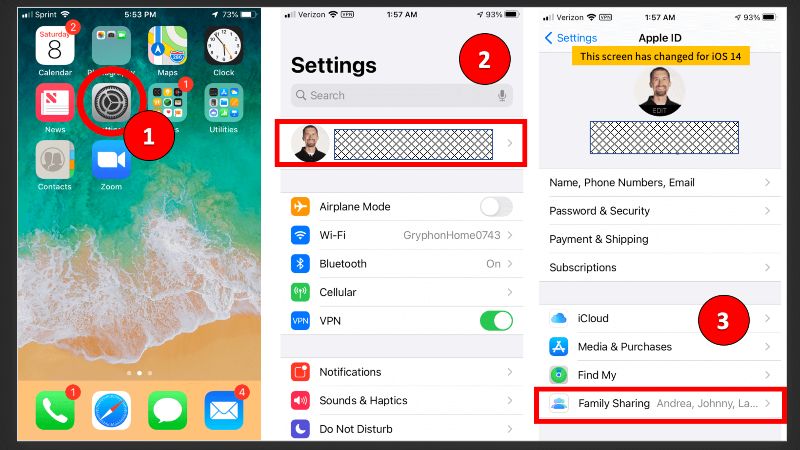
Family Sharing
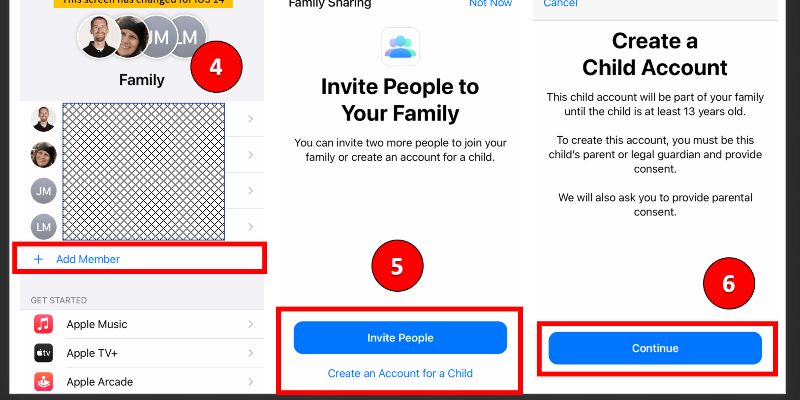
You can add upto six (6) family members under Family Sharing. Add a child, who is younger than 13-years-old, click “Create a Child Account” in step (5) below.
Select “Invite in Person” from step (5) below, you will see the screenshot with step (7). Type in the Apple ID and password for your child’s account. You need to know their Apple ID and password!.
For example, if you attempt to add someone as a “child” in Family Sharing, but their birthday makes them 20-years-old, Apple will classify them as an Adult and make setting up child protection impossible.
Approvals
Now, we have a series of questions about whether you want to approve;
App downloads step (8) below)
Share their location (also yes – step (10) below).
Share purchases made by your child on your phone is your decision (step (9) .
Screen Time Downtime
The first Screen Time step is to control Downtime, meaning no access. Set Downtime to shut off the iPhone during bedtime and homework, for example. Lock the timeframe by clicking “Set Downtime” as shown in step (12).
One parent asks "I can just shut down my kid’s apps, which I love. Can I do that in Screen Time?”
“YES!” Once you’ve linked your child’s iOS device to yours, you can go into their Downtime settings and if you set the start time for something before “now,” then, Downtime is now switched on and their apps will shut down per what you set up in step (21) below. Very agricultural, but that's Apple.
One of 'Downtimes' weaknesses is that you can’t set multiple different “Downtimes.” For example, you might allow later access to apps on Friday than on Tuesday.
Next, it is App Limits. You can allow for a certain amount of time to be spent on categories of apps during the day. iMessage is under “Social Networking.”
You can set time limits for individual apps, but it’s not intuitive how you get there.
Click into Screen Time -> Click “All Devices” (very top option) -> within the “Most Used” listing–> Click on whichever app to add a limit to -> Scroll down to where it says “Limits” -> “Add Limit” (Yes it is bad)